


Acorn TV: Brilliant Hit Series
3.021.00 Reviews
App Specs
- Version
- 5.0.29.1
- Updated On
- License
- Free
- Downloads
- 100,000+
- Developer
- RLJ Entertainment
- Categories
- Entertainment
- Platform
- Android
Screenshots
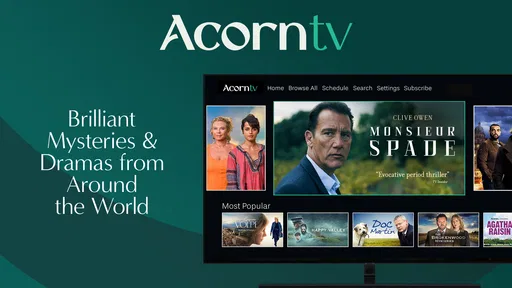
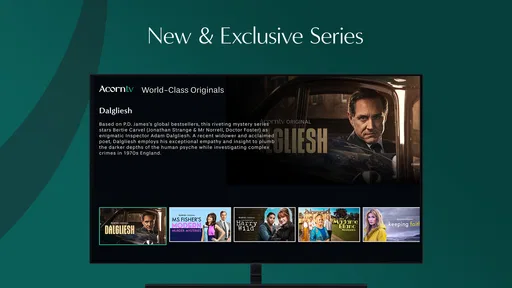
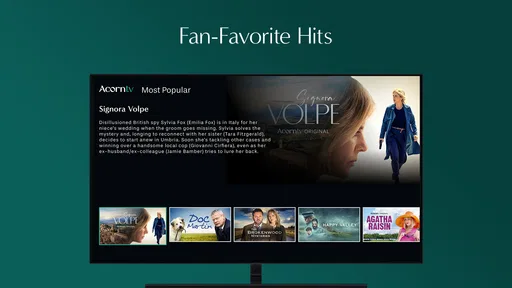
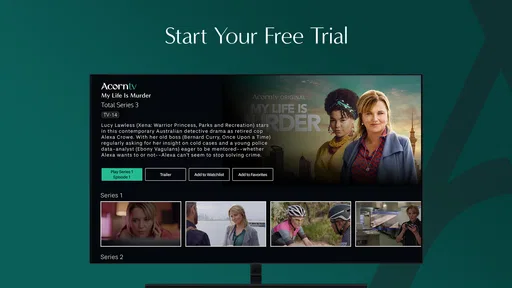
 Analysis by AppCompare
I approached Acorn TV: Brilliant Hit Series as an entertainment app for people who want a focused selection of crime, drama, and comedy programming rather than another general-purpose video library. It is free to install, but the viewing experience can involve in-app purchases ranging from $0.99 to $99.99 per item, so I would not treat the download price as the whole cost decision. The app comes from RLJ Entertainment and is aimed at a Teen audience.
My overall impression is mixed but useful: the service has a clear identity, yet the app experience depends heavily on getting through the initial setup without confusion. Its average rating is 3.0 from around 118 ratings, with about 21 written reviews, and that feels consistent with an app that can satisfy the right viewer while frustrating someone expecting a completely effortless streaming shortcut.
Getting past the points where viewers commonly hesitate
The first thing I would clarify is what this app is for. It is not simply a player for videos already stored on a phone, and it is not designed around the enormous general catalog associated with the biggest streaming platforms. Its appeal is the narrower entertainment focus: crime stories, dramas, and comedies presented under the Acorn TV name. If those are the genres I am actively looking for, the narrower catalog can make browsing feel more purposeful. If I want every current blockbuster, a large children’s section, or a broad mix of live content, I would look elsewhere.
The free installation can also create an expectation that everything inside will be free. I would check the purchase details before settling into a long viewing session. The presence of item prices from $0.99 to $99.99 means the important question is not whether the app costs anything to download, but which viewing access is available for the account and what requires payment. I recommend deciding that before browsing deeply, especially if the device is shared with family members.
Another possible sticking point is the difference between installing the app and being ready to watch. A streaming app normally needs a stable connection, an account or access path, and a compatible device environment. Acorn TV: Brilliant Hit Series supports Android devices starting with version 5.0, which covers a wide range of older phones and tablets. That broad compatibility is helpful, although an older device may still feel less responsive than a newer one even when it meets the minimum operating-system requirement.
When a title will not start, I would avoid assuming immediately that the catalog or the app is broken. Streaming problems often come from a stalled session, a weak network, a device running short on available resources, or an account state that has not refreshed correctly. The most useful first step is to leave the title, return to the main screen, and try again after checking that other online services are working on the same connection.
A calmer setup makes the first session easier
I would begin by installing the app on the device I actually plan to use for regular viewing, rather than testing it on an old phone and judging the whole service from that experience. After opening it, I would read each sign-in or purchase screen carefully instead of tapping through quickly. This is particularly important because the app is free to download while offering paid items inside it.
Worth Reading Before You Choose

EA SPORTS FC Mobile 26 Is a Bigger Football Game, but It Takes Time

Flipboard Shows What News Apps Must Do Beyond the Feed

Switching to Android Auto Means Rethinking Your Driving Routine

Google Calendar Makes a Crowded Week Easier to Manage

Ludo King Makes the Most of the Minutes Between Plans

Baby Panda World Brings Quick Play to Modern Phones, but Its Game Library Feels Busy
Before choosing a program, I would confirm that the correct account is active on the device. This matters on shared tablets, family phones, and devices that have recently changed hands. If the app appears to show a different access state than expected, closing and reopening it after confirming the account is a sensible general recovery step. I would also make sure the system clock is set correctly, since incorrect device settings can sometimes interfere with sign-in or secure connections.
The current version is 5.0.29.1. I would check that the installed version is current through the normal app-management screen before spending time troubleshooting playback. An update can resolve compatibility issues, but I would not assume that every problem requires an update. If the app was just updated and began behaving differently, a full close and fresh launch is a reasonable first check.
My practical setup routine would be simple:
- Use a reliable Wi-Fi or mobile connection and test another online service if playback fails.
- Confirm the intended account before starting any purchase or subscription-related flow.
- Check the device operating system and the installed app version.
- Restart the app completely rather than repeatedly tapping a frozen play control.
- Try a second title to see whether the issue affects one program or the whole service.
That last check is more useful than it sounds. If one title fails while another starts normally, the problem may be tied to that particular item or its current availability rather than the phone itself. If every title fails, I would focus first on the connection, account session, app state, or device environment.
Recovering a viewing session without starting over blindly
When a program stops midway, I prefer a staged recovery process. First, I leave the playback screen and reopen the title. If that does not help, I close the app fully and launch it again. Next, I test another program. This sequence tells me whether I am dealing with a temporary playback interruption, a title-specific problem, or a broader app session issue.
I would not repeatedly purchase an item just because the first attempt did not appear immediately. Payment screens and account updates can take time to refresh, and duplicate taps can create unnecessary confusion. I would wait, check the account state, and reopen the app before trying any transaction again. This is one of the most important habits for a free-to-install streaming app with paid content: treat a missing entitlement as a session problem first, not a reason to buy twice.
If the app opens but playback remains unreliable, I would restart the device and test the connection from the same location. Moving closer to the router can help distinguish a local wireless problem from an app problem. On mobile data, I would check whether other video services behave similarly and whether the device has restrictions that limit streaming. I would avoid changing several settings at once, because that makes it harder to identify what actually fixed the issue.
There is also a useful distinction between a frozen interface and a failed stream. If menus respond but video does not begin, I would investigate the connection and account session. If the entire screen is unresponsive, I would close the app and restart the device before doing anything more drastic. Clearing app storage or reinstalling can remove local problems, but those steps may require signing in again, so I would use them only after remembering the account details.
For an older Android device, I would leave enough free storage and close demanding apps before watching. The minimum supported operating system is Android 5.0, but meeting that baseline does not guarantee that every older handset will feel smooth. A device with limited memory, an aging battery, or many background processes may struggle even when the app installs correctly. In that situation, trying a newer phone or tablet is a better diagnostic than repeatedly reinstalling the same software.
Separating app trouble from network and device trouble
Streaming services are unusually dependent on factors outside the application itself. A slow connection, crowded wireless network, temporary router issue, or mobile-data restriction can look exactly like an app failure. I would test the service at another time and, if possible, on another connection before deciding that Acorn TV is the cause.
The device can be responsible as well. Low free space, an outdated operating system, aggressive battery management, or too many background processes can interrupt playback or make menus feel delayed. I would check these basics before blaming the catalog. A useful comparison is to open another video app on the same device. If several services buffer or fail, the likely problem is the device or connection. If only Acorn TV struggles, then restarting its session, checking its version, and confirming account access become more relevant.
I also would not assume that every difference between devices is a defect. A phone and a tablet can present the same service differently because of screen size, system behavior, or account state. Shared devices are especially prone to confusion when one person has signed out, changed an account, or started a purchase flow. Keeping one primary viewing device and one clearly identified account reduces that friction.
For households, the Teen content rating is worth considering before handing the app to younger viewers. It signals that the service is not intended to be treated as a children’s-only viewing space. I would choose programs together and use the app with the same judgment I would apply to other crime and drama services. The genre focus is part of the attraction, but it also means the catalog may include themes that are unsuitable for small children.
How it fits into a normal evening
A realistic use case for me would be a quiet evening when I want a crime series or a character-driven drama without spending half an hour searching through unrelated categories. I would open the app, browse within its focused entertainment identity, and choose something that matches the mood. That concentration is the strongest reason to try it. It feels more purposeful than opening a huge general streaming app with no clear idea what to watch.
It could also suit someone who enjoys discovering programming associated with Acorn TV and prefers a service built around established genre tastes. The app’s store summary emphasizes commercial-free viewing, which is appealing when I want an uninterrupted session. I would still keep expectations practical: an ad-free or commercial-free presentation does not remove the need for a dependable connection, a functioning account, and careful attention to any paid access shown inside the app.
Compared with a broad streaming alternative, this app trades catalog breadth for focus. A larger service is usually the better choice when I want new mainstream releases, multiple family profiles, extensive children’s programming, or a single place for many unrelated genres. Compared with free ad-supported video apps, Acorn TV may be more attractive to someone who values a cleaner viewing flow and a more curated crime, drama, and comedy selection, but the purchase structure deserves closer attention before committing.
I would skip it if my main goal is live television, local programming, sports, or a giant all-purpose library. I would also skip it if I dislike checking access terms before watching or if I need an app that works equally well on very old hardware without any setup effort. The focused catalog is a strength only when it matches my taste; otherwise, it can feel restrictive rather than curated.
What I would check before recommending it
My recommendation would begin with the device, not the catalog. Android 5.0 compatibility makes installation possible on older hardware, but I would still use a reasonably maintained phone or tablet for a better chance of smooth navigation. I would also confirm that the person using it understands the difference between a free download and paid items within the app.
I would then test the complete path with a short session: open the app, confirm the account, select a title, start playback, leave the app, and return to it. This reveals more than simply seeing whether the icon launches. It checks whether the session survives ordinary interruptions such as answering a call, switching applications, or briefly losing the connection.
If a family member is likely to use the device, I would explain the purchase screens in advance and avoid leaving the app open on a page where a tap could begin a transaction. That is not a criticism unique to this service; it is simply sensible practice whenever in-app purchases are available. The listed range, from $0.99 to $99.99 per item, makes that caution especially worthwhile.
The app has reached over 100 thousand installs, so it is not an obscure experiment with no audience. Still, the modest average rating suggests that popularity alone should not decide the download. I would treat the rating as a prompt to test the setup carefully and judge whether the focused content is worth the occasional friction for my own viewing habits.
My practical verdict after using it
I see Acorn TV: Brilliant Hit Series as a specialized entertainment option rather than a universal replacement for every streaming app. I like the clear emphasis on crime, drama, and comedy, and I appreciate the idea of opening a service with a defined viewing personality instead of wandering through an enormous catalog. For the right viewer, that focus can save time and make an evening choice easier.
At the same time, I would not recommend installing it casually and assuming the first screen tells the whole story. The free download, paid items, account state, connection quality, and device age all affect the experience. Most setup trouble can be approached sensibly by checking the account, restarting the app, testing another title, and comparing the connection with another video service. Those steps are more useful than repeatedly tapping play or reinstalling immediately.
My final advice is straightforward: try it if you specifically want a focused home for crime, drama, and comedy programming and are comfortable reviewing access details inside the app. Choose a broader streaming service if variety, live content, children’s viewing, or mainstream releases matter more than genre focus. For me, the deciding factor is not the download price but whether the catalog’s personality matches the way I actually choose what to watch.
Pros
- Strong selection of British and international mystery dramas.
- Exclusive premieres give subscribers fresh content to discover.
- Most shows offer subtitles and multiple audio language options.
- Clean interface makes browsing by genre and popularity simple.
- Offline downloads are useful for watching during travel.
Cons
- The catalog varies significantly by country due to licensing restrictions.
- Some series have limited seasons or episodes available.
- New releases may arrive later than their original broadcast dates.
- Video quality can depend heavily on your internet connection.
- A subscription is required after the trial period ends.
FAQs for Acorn TV: Brilliant Hit Series
What is Acorn TV: Brilliant Hit Series?
Acorn TV is a subscription streaming service focused on acclaimed television from the United Kingdom, Ireland, Australia, New Zealand, Canada, and other regions. Its catalog commonly includes mysteries, dramas, comedies, and exclusive or original series. The app is designed for viewers who prefer international programming and curated collections rather than the broad mainstream catalog offered by larger streaming platforms.
Does Acorn TV require a subscription, and is there a free trial?
Yes, Acorn TV generally requires a paid membership to watch its full library. Depending on your country, platform, and current promotion, new users may be offered a free trial or introductory price, but these offers can change. Check the subscription screen carefully before confirming, especially for the renewal date, billing frequency, and cancellation terms. Removing the app does not automatically cancel an active subscription.
Can I watch Acorn TV offline without an internet connection?
Offline viewing may be available for selected titles and supported devices, but it is not guaranteed for every program or platform. When downloads are supported, you normally need to save an episode while connected to the internet and watch it through the app before the download expires. Availability can also depend on licensing restrictions, storage space, app version, and your account status, so verify the download option on each title.
What devices support the Acorn TV app?
Acorn TV can typically be accessed through its mobile applications on compatible Android and iOS phones or tablets, as well as through supported web browsers, smart televisions, streaming media players, and other connected devices. Exact compatibility varies by country and device model. Before subscribing, check the official app-store listing and the service’s supported-device information to confirm that your phone, television, or streaming hardware is compatible.
Is Acorn TV available in every country, and does the catalog vary by location?
No. Acorn TV availability and programming depend on your location because distribution rights differ between countries. A series available in one region may be missing or delayed elsewhere, and subtitles, audio options, pricing, and supported devices can also vary. If you travel, the selection may change according to your current location. Review the local catalog and subscription details before downloading or starting a membership.


